

AI Image Layer Separation: Recompose Flat Designs with EzLayers
Use EzLayers to separate image elements, inspect reconstructed backgrounds, and choose PNG layers or a PSD for your next layout revision.
HuntifyAI Team
Publisher
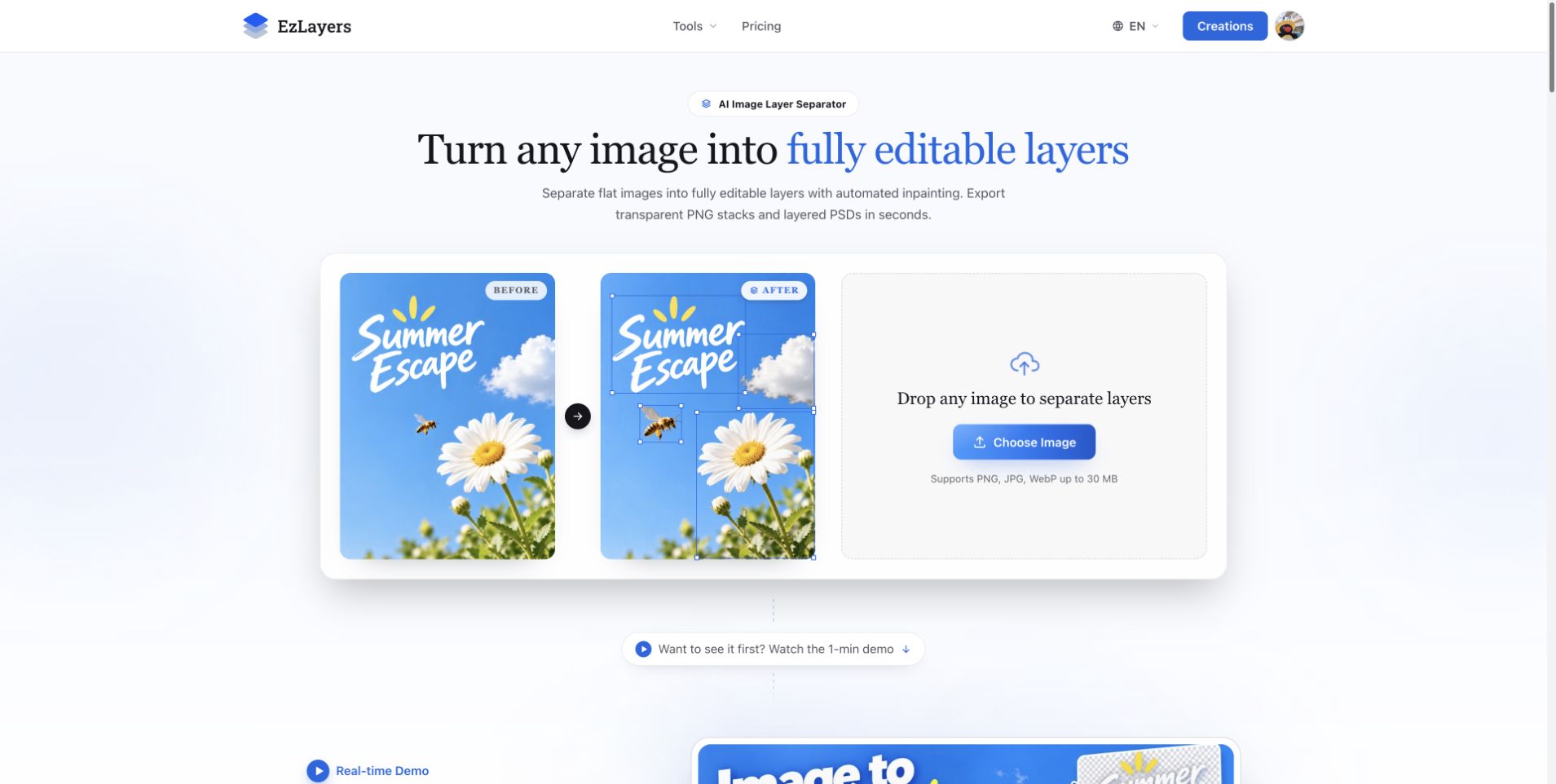
You have a finished image, but the layout needs to change. The person should move to the other side, the product needs more breathing room, or a square composition needs a vertical version. Recreating the entire design can be excessive when only a few elements need to move.
An AI image layer separator attempts to recover those elements from a flat image. EzLayers focuses on separating visual regions and reconstructing areas hidden behind them. The practical question is whether that separation gives you enough control for the next composition.
Think in editing goals, not layer counts
More layers do not automatically make a better working file. A product and its shadow might be useful as separate elements for one edit and easier to handle together for another.
Start with the change you want to make. For a social crop, identify the main subject, supporting decoration, and background. For an ecommerce banner, decide whether the product, contact shadow, badge, and headline need independent treatment.
Then choose the smallest useful set of elements. This keeps the result understandable and reduces the time spent managing fragments that do not contribute to the revision.
What EzLayers reconstructs from a flat image
EzLayers lists JPG, PNG, and WebP inputs, optional text guidance, a layer preview, and exports as transparent PNG layers or a layered PSD. It also describes filling background areas that were covered by foreground objects. See the official product page for the current workflow.
This is a reconstruction process. The hidden portion of a patterned wall or illustration is inferred from visible context; it is not recovered from a secret copy of the original project. Likewise, a separated text-shaped region should not be assumed to contain native typography settings.
For editing decisions, the key distinction is simple: a plausible background can be useful, but it should be inspected whenever it becomes visible in the new layout.
A workflow for recomposing an existing design
- Choose the cleanest source image available and save an untouched reference.
- Write the intended change in one sentence, such as “Move the person to the right and leave space for a new headline.”
- Upload the image to EzLayers. If the interface offers guidance for the task, describe the elements that matter without requesting unnecessary fragmentation.
- Review the separated regions. Toggle visibility and check whether the selected pieces can move independently.
- Move a foreground element enough to expose its previous position. Inspect the reconstructed background before building the new composition.
- Export and finish the revision in your preferred design workflow.
Make one meaningful change before processing a large set of images. Moving the subject, replacing the backdrop, or adapting the crop gives you a stronger acceptance test than looking at the unchanged stack.
PNG layers or layered PSD?
| Output | Best fit | Check before handoff |
|---|---|---|
| Transparent PNG layers | Reusing cutouts in another layout or compositing tool | Transparency, canvas dimensions, and layer order |
| Layered PSD | Continuing a document-based editing workflow | Layer names, alignment, visual fidelity, and editor compatibility |
The EzLayers image-to-PSD page describes the PSD route. Choose the output around the destination application rather than assuming every project needs a Photoshop file.
For PNG layers, keep a record of stacking order and avoid trimming every file differently if the destination workflow depends on a shared canvas. For PSD delivery, open the file in the editor the recipient actually uses and perform a small edit before sending it.
Inspect the parts that are easy to overlook
Edges: Hair, fur, translucent material, and fine decoration deserve close inspection. Place a cutout against a contrasting background to expose leftover pixels.
Lighting: A moved object may no longer fit the lighting of its new position. Keep shadows and reflections in mind rather than judging the cutout alone.
Repeated patterns: Background reconstruction can create a plausible texture that does not preserve the exact rhythm of tiles, lines, or repeated lettering. Compare any newly exposed area with its surroundings.
Text and logos: If the revision needs new wording or sharp scaling, rebuild text and use original brand assets where possible. Pixel separation is not a substitute for a native font or vector logo.
When manual reconstruction is still worthwhile
AI separation is useful for reducing repetitive extraction work. Manual rebuilding can be the better choice when exact geometry, native chart data, or a reusable design system is the deliverable.
For example, adapting a one-off banner may only require a clean subject and a repaired background. Creating a template that dozens of people will reuse may justify rebuilding text styles, spacing rules, and component relationships from scratch.
Frequently asked questions
Is image layer separation the same as background removal?
Background removal usually aims to isolate a foreground cutout. Layer separation attempts to recover several useful regions, potentially including a reconstructed background.
Can EzLayers recover the original project file?
Treat its output as a reconstructed document. Do not assume it reproduces hidden source assets, original vector objects, or the author's editing history.
How should I judge the result?
Complete the edit you actually need. If moving the subject exposes a background problem or an edge artifact, fix it before using the output in a final design.
Explore EzLayers on Huntify or try EzLayers with a representative design. For a more document-focused handoff checklist, see our JPG to layered PSD guide.
Product information checked on October 20, 2026. This guide describes a practical evaluation workflow, not a measured comparison of separation models.
More posts
View all posts →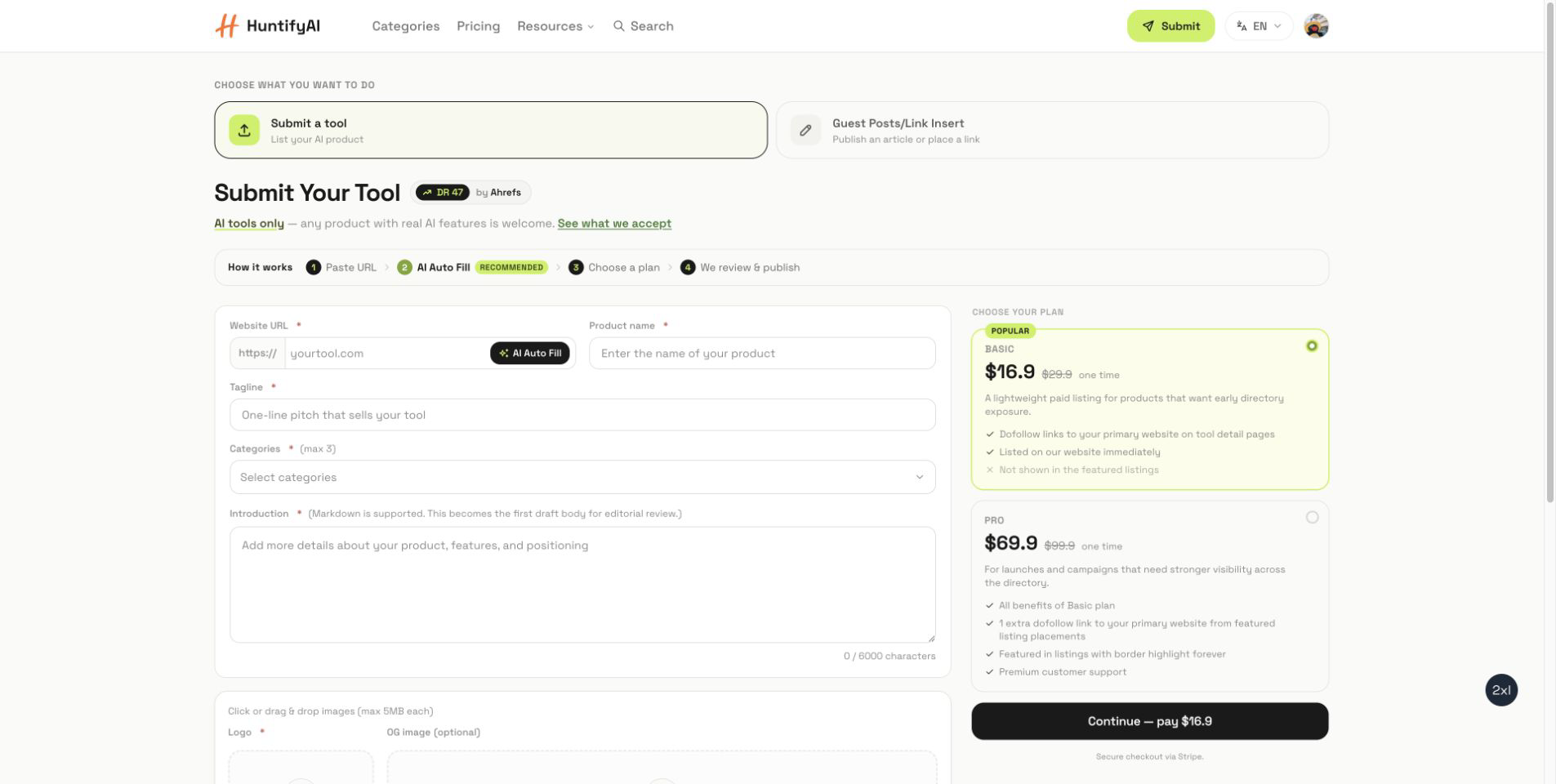
How to Submit to HuntifyAI: Tool Listings and Guest Posts
A focused guide to choosing between a HuntifyAI tool listing and the Guest Posts/Link Insert workflow.
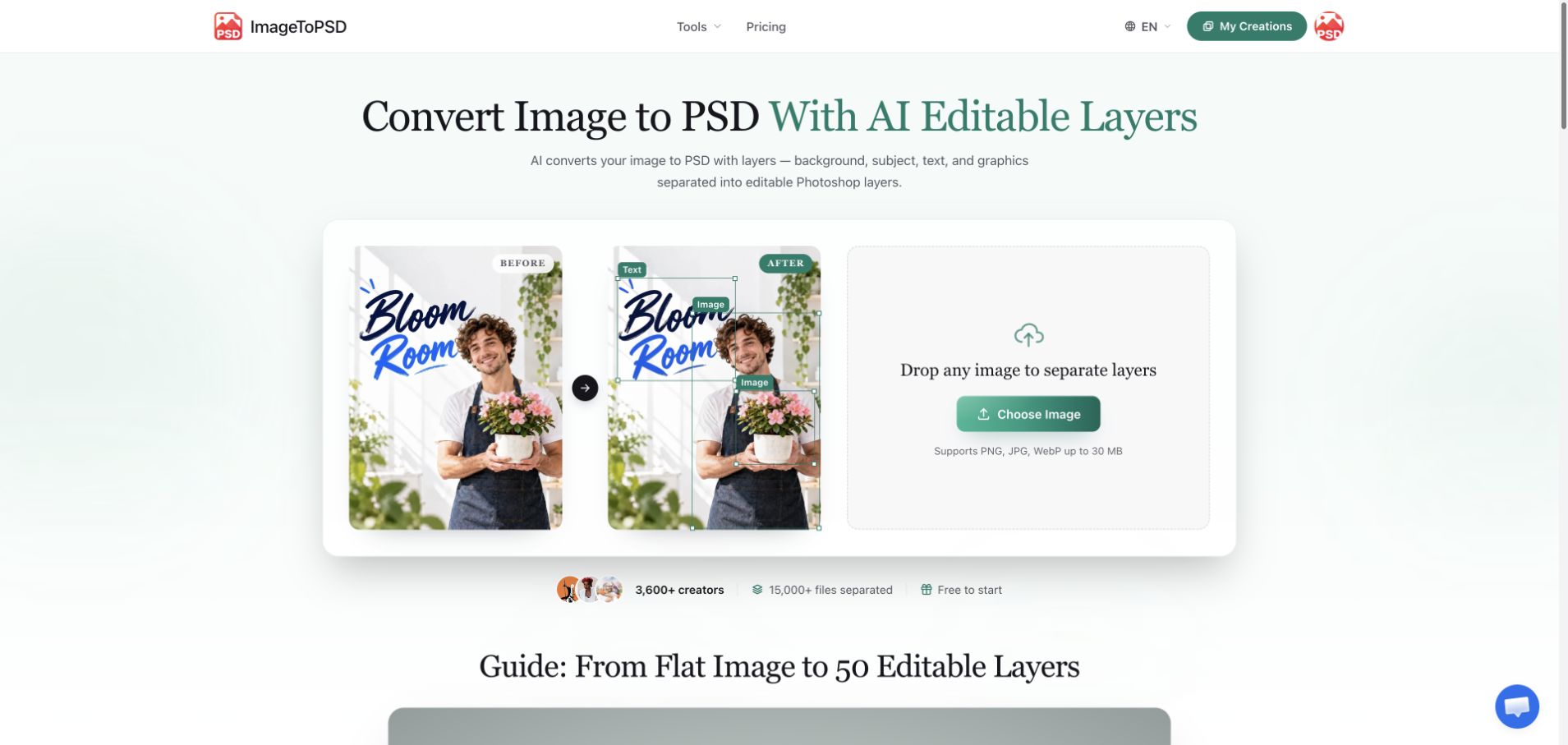
JPG to Layered PSD: A Practical ImageToPSD Workflow
Learn how to turn a flat JPG into a useful layered PSD with ImageToPSD, check the result in your editor, and prepare a cleaner design handoff.

AI Background Music for Videos: A Musiclly Creator Workflow
Plan narration-friendly AI background music with Musiclly: write better instrumental prompts, compare variations, edit to picture, and check commercial-use terms.