

AI Background Music for Videos: A Musiclly Creator Workflow
Plan narration-friendly AI background music with Musiclly: write better instrumental prompts, compare variations, edit to picture, and check commercial-use terms.
HuntifyAI Team
Publisher
Background music has a specific job in a video: support the pace and feeling without making the viewer work harder to understand the speaker. A track can be enjoyable on its own and still be wrong underneath narration.
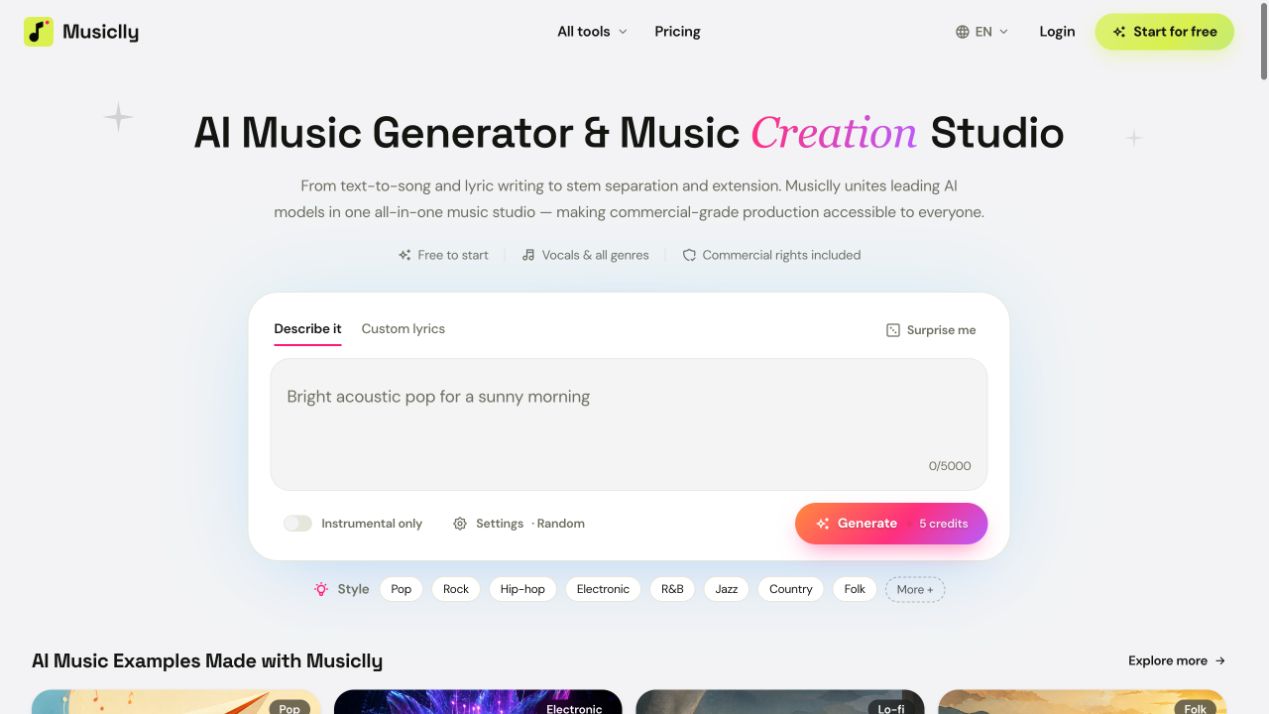
If you are looking for AI background music for videos, start with the edit rather than a genre label. Musiclly offers prompt-based music generation, including an instrumental option. This guide shows how to turn a video brief into a useful music brief and how to evaluate the result in context.
Write the video brief before the music prompt
Decide where the music will live. A calm screen-recorded tutorial, a short product reveal, and a reflective travel montage have different needs.
For a tutorial, the music may need to stay stable through several minutes of speech. A product reveal can tolerate a clearer transition when the interface appears. A montage may need room for a melody because fewer words compete with it.
Mark the moments that matter on your timeline: opening, first explanation, demonstration, and closing call to action. Decide whether one continuous bed will work or whether you need separate cues. This makes comparison more useful than repeatedly generating unrelated tracks.
Build a prompt that leaves space for narration
The Musiclly AI music generator accepts a descriptive brief, with controls for instrumental generation and custom lyrics when relevant. For a voice-led video, select the instrumental option and describe arrangement as well as mood.
Here are three starting briefs to adapt:
- Software tutorial: “Warm minimal electronic instrumental, restrained percussion, soft keys, steady relaxed pulse, sparse arrangement, no vocal elements, designed to sit underneath spoken instructions.”
- Product reveal: “Clean modern instrumental, gentle opening with a gradual lift, compact rhythmic motif, confident but restrained energy, no vocals, a clear ending for a short product demonstration.”
- Travel narration: “Reflective acoustic instrumental, light guitar texture and subtle ambient space, unhurried movement, no lead vocal or choir, room for a spoken travel story.”
These are creative directions, not guarantees of exact timing or instrumentation. Change one major variable at a time. If the texture works but the energy is too high, adjust density and percussion before replacing the entire concept.
Compare outputs against the same stretch of video
Use the same narrated passage for every candidate. Include one quiet sentence, one information-heavy sentence, and a transition if possible.
Listen for three problems: a melody competing with the voice, a rhythmic accent landing on an awkward edit, and an unexpected vocal-like sound. Creator discussions about generative music often highlight unwanted humming or arrangement changes; an instrumental setting is a starting point, so listen to the complete selected output.
Do a quiet playback check on ordinary headphones or laptop speakers. If the narration loses clarity, reduce or simplify the music before adding more processing. Ducking the music during speech and allowing it to rise between phrases is often more helpful than choosing a louder track.
Extend or separate a track only when the edit needs it
When a cue is too short, a music-extension workflow can be more useful than stretching the waveform. Musiclly has an AI music extender; check the join and ending after extension because a continuation may introduce a new musical idea.
For a mix that needs less rhythmic or melodic activity, the AI stem splitter may help isolate components. Separation quality depends on the recording. Listen for artifacts when muting or emphasizing a stem, and compare the adjusted mix with the original.
Do not use these tools merely because they are available. A suitable shorter cue with a deliberate fade can be a cleaner editorial choice than a complicated extension.
Check the licence before publishing a commercial video
Musiclly's pricing page distinguishes personal-use trial access from commercial licensing. Eligible paid subscriptions include commercial-use rights under the applicable terms; one-time credit packs alone do not grant those rights. Verify the plan and terms that apply to the output you intend to publish.
Keep a record of the track, generation date, account plan, and licence information alongside the project. If uploading source audio to another tool in the workflow, use audio you own or have permission to process. A commercial licence should not be described as a promise that every platform will never raise a claim.
Frequently asked questions
Can I make background music without lyrics?
Musiclly provides an instrumental option. Specify the desired arrangement and listen through the result for unwanted vocal-like material before using it.
How do I make the music fit an exact video length?
Plan the opening and ending in the edit. Trim at musical phrases, use fades, and consider extension if the track needs a genuine continuation. Do not assume a text prompt will deliver frame-accurate timing.
Is a credit purchase the same as a commercial licence?
No. Check the current plan terms. Musiclly states that credit packs alone do not provide commercial rights.
Explore Musiclly on Huntify, then start with one short video in Musiclly. If your video also needs an editable presentation, our Slideful guide covers a separate workflow for slide assets.
Product details and plan distinctions checked on October 20, 2026. Prompt examples are editorial suggestions, not a claim of tested output quality.
More posts
View all posts →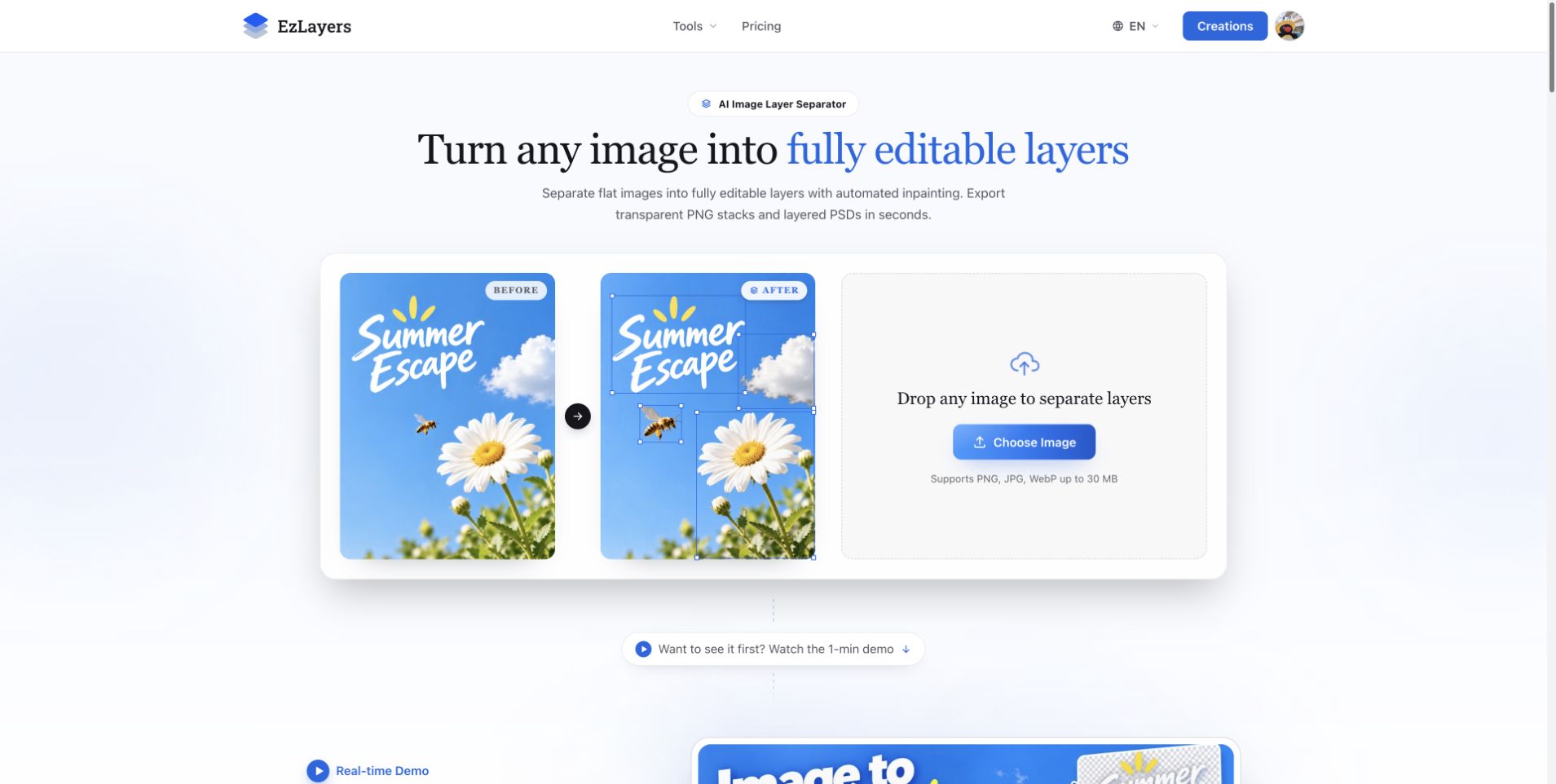
AI Image Layer Separation: Recompose Flat Designs with EzLayers
Use EzLayers to separate image elements, inspect reconstructed backgrounds, and choose PNG layers or a PSD for your next layout revision.
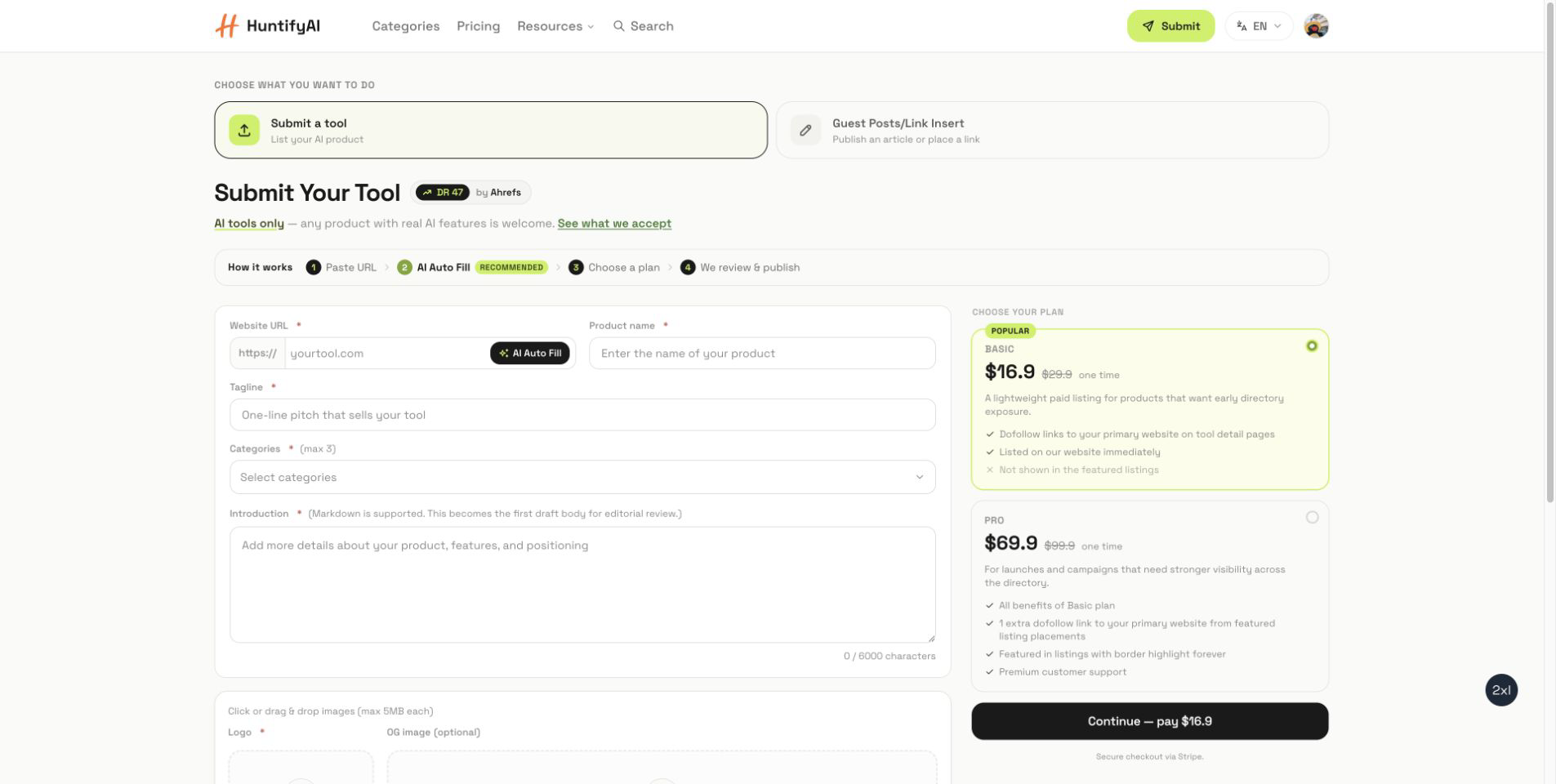
How to Submit to HuntifyAI: Tool Listings and Guest Posts
A focused guide to choosing between a HuntifyAI tool listing and the Guest Posts/Link Insert workflow.

JPG to Layered PSD: A Practical ImageToPSD Workflow
Learn how to turn a flat JPG into a useful layered PSD with ImageToPSD, check the result in your editor, and prepare a cleaner design handoff.