

JPG to Layered PSD: A Practical ImageToPSD Workflow
Learn how to turn a flat JPG into a useful layered PSD with ImageToPSD, check the result in your editor, and prepare a cleaner design handoff.
HuntifyAI Team
Publisher
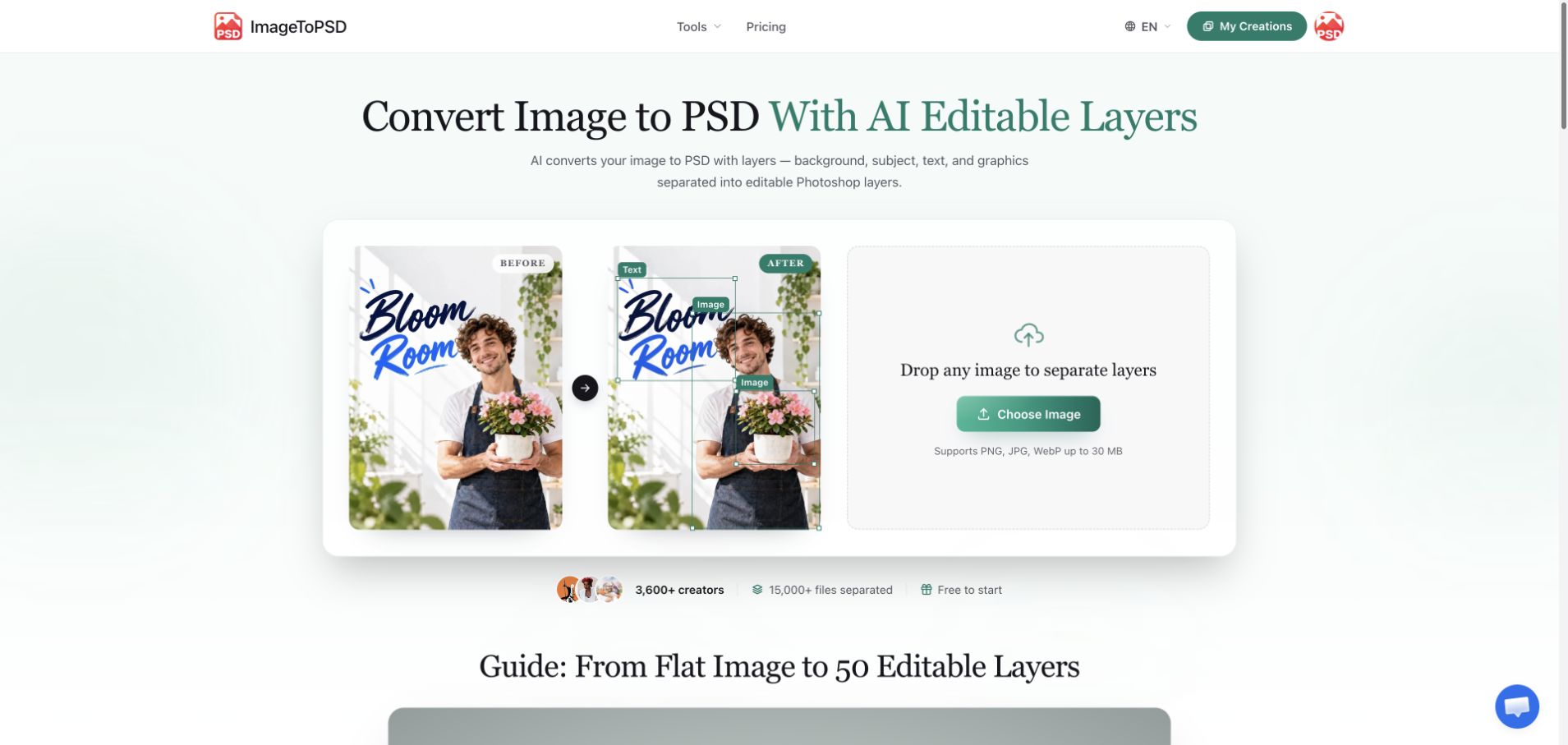
A client sends a JPG banner and asks you to move the product to the left. The original design file is missing. Opening the JPG in Photoshop gives you a canvas, but it does not give you the separate objects needed for that edit.
A JPG to layered PSD workflow is useful in precisely this situation. The goal is to recover enough editable structure to make the next revision practical. This guide explains how to approach that job with ImageToPSD, and how to judge the exported file before handing it to another designer.
Format conversion and layer reconstruction solve different problems
Saving a JPG as a PSD changes the container. A PSD can hold layers, but the act of saving does not identify the person, product, lettering, or background inside a flat image.
Layer reconstruction attempts that separation. ImageToPSD describes an AI workflow that creates semantic image layers, reconstructs covered background regions, and offers PSD or PNG-layer exports. Its JPG to PSD page addresses this distinction directly.
Treat the result as a reconstructed working file. It cannot reveal the original designer's hidden content, original typography settings, adjustment stack, or vector paths. If a client requires the original editable artwork, ask for that source file first.
Choose the image around the edit you need
Before uploading, write one sentence describing the revision: “Move the bottle and keep the background usable” is much more actionable than “make everything editable.”
Choose the largest clean source you have. A heavily compressed screenshot may contain halos and blurred letters that become more visible after separation. If the same artwork is available as a better-quality PNG, use it instead of repeatedly resaving the JPG.
A good first candidate has a clear foreground object and a relatively simple background. A crowded collage with overlapping hair, transparent glass, tiny text, and reflections requires closer inspection. Start with a representative asset before committing an entire campaign to the workflow.
Turn the JPG into a working layered PSD
- Open ImageToPSD and upload the source image. The product lists JPG, PNG, and WebP inputs.
- Run the layer-separation workflow. Use the preview to understand which visible regions were grouped together.
- Hide each foreground layer in turn. Inspect the space underneath it, especially around shadows and repeating textures.
- Export the PSD when the separation is useful. A PNG-layer export can also help when you need individual transparent assets rather than one Photoshop document.
- Open the result in your intended editor and perform the actual revision before calling the file ready.
That last step matters. A file that looks convincing in a browser preview can still need cleanup when the product is moved, scaled, or placed over a different background. See the product's image-to-layers workflow for the export approach, then evaluate it against your own editing task.
Check the file before a design handoff
| Check | What to do | Why it matters |
|---|---|---|
| Object edges | View the cutout over both light and dark backgrounds | Halos can disappear against the original background |
| Hidden background | Move the foreground object aside | Reconstructed areas may need retouching |
| Layer structure | Rename useful layers and group related pieces | The next designer needs to understand the file |
| Text | Check whether lettering is pixels or editable type | A separated text-shaped region is not automatically a text box |
| Composition | Compare the revised canvas with the source | Shadows and reflections may belong with a moved object |
Keep the original JPG in the delivery folder. Include a short note explaining which elements were reconstructed and which parts you checked. A simple “background retouched under product” note can prevent confusion during later revisions.
When to rebuild an element manually
If a logo needs crisp scaling, get the vector logo rather than enlarging a reconstructed pixel layer. If a headline needs different wording, recreate it with the correct font and verify spacing. If the request involves a complex chart, return to the underlying data when available.
ImageToPSD is most useful when it reduces repetitive separation work on an existing raster composition. It is less useful when the real requirement is the original design system or fully parametric artwork.
Frequently asked questions
Does converting JPG to PSD automatically create layers?
No. A basic format conversion can leave you with one image layer. An AI separation workflow attempts to reconstruct multiple useful regions.
Can I recover the original text and vector objects?
Do not assume so. Inspect the export. Rebuild text or obtain the original vector assets when native editability is required.
Should I export PSD or separate PNG files?
Choose PSD for a layered document handoff. Choose PNG layers when you need cutouts for a layout tool or a composition assembled elsewhere.
Start with one real revision in ImageToPSD, or view its Huntify product profile. For a broader discussion of separating objects and rebuilding compositions, read our EzLayers image layer separation guide.
Product information checked on October 20, 2026. This is a workflow guide based on public product information, not a measured conversion benchmark.
More posts
View all posts →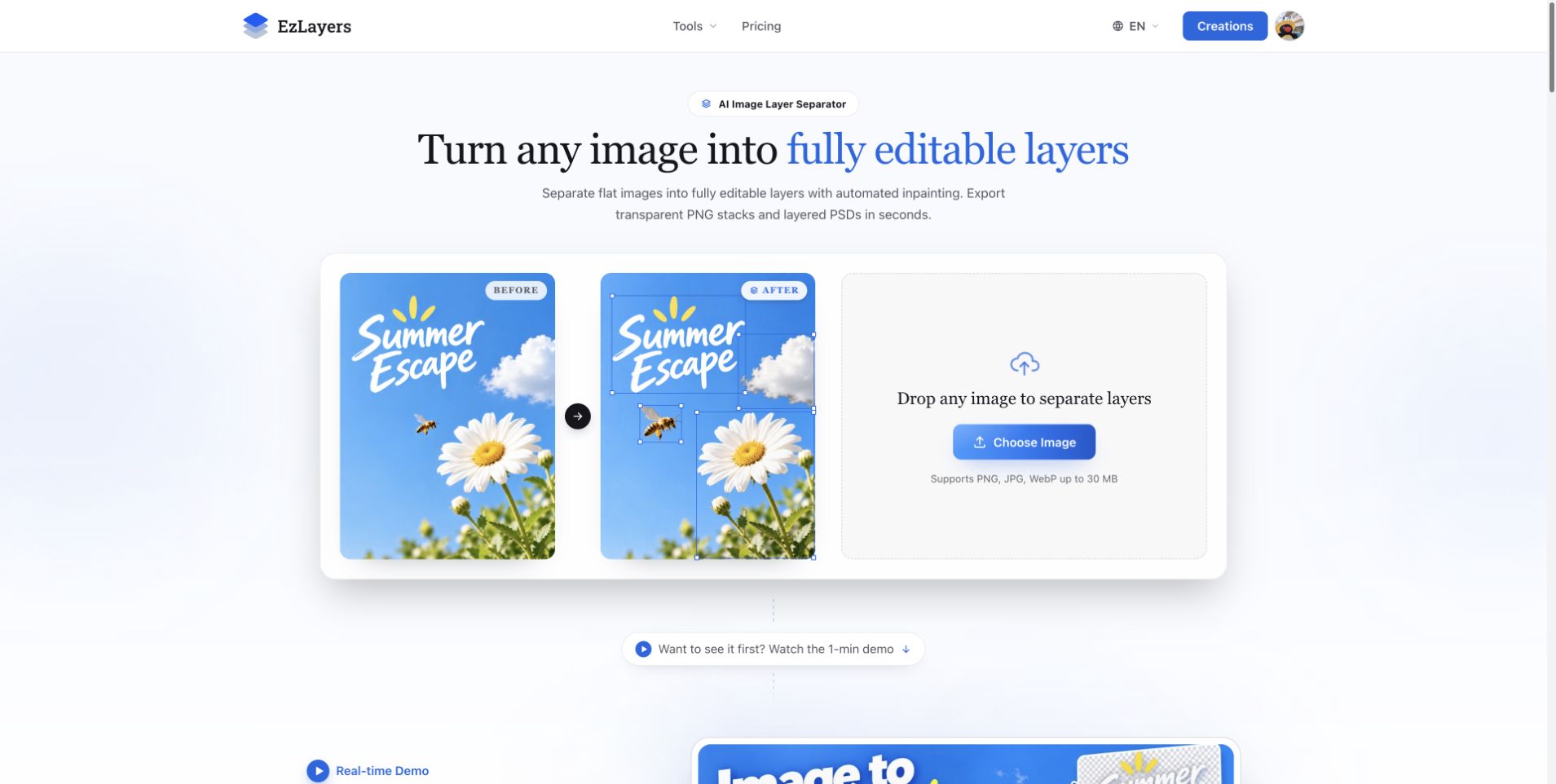
AI Image Layer Separation: Recompose Flat Designs with EzLayers
Use EzLayers to separate image elements, inspect reconstructed backgrounds, and choose PNG layers or a PSD for your next layout revision.
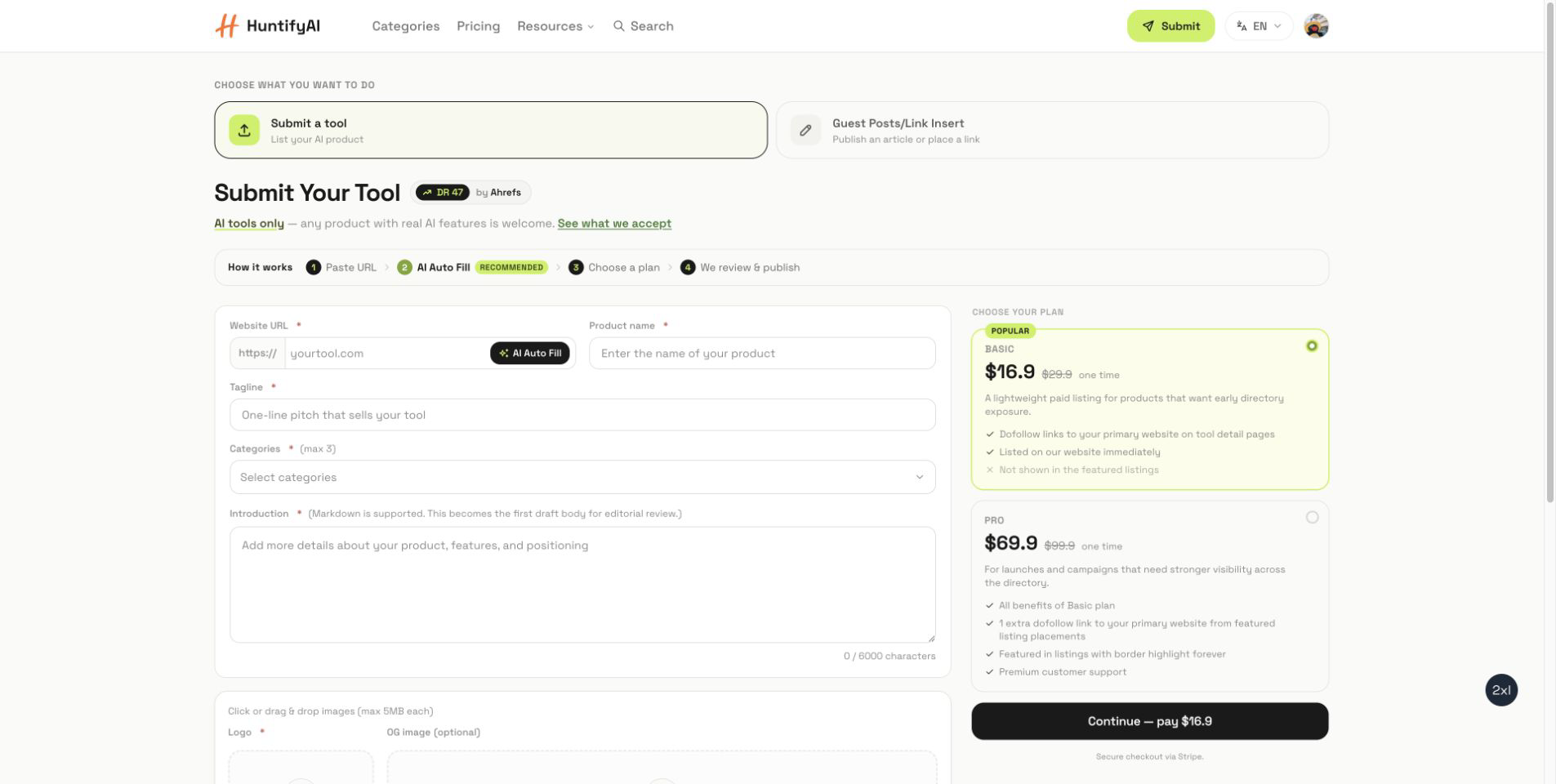
How to Submit to HuntifyAI: Tool Listings and Guest Posts
A focused guide to choosing between a HuntifyAI tool listing and the Guest Posts/Link Insert workflow.

AI Background Music for Videos: A Musiclly Creator Workflow
Plan narration-friendly AI background music with Musiclly: write better instrumental prompts, compare variations, edit to picture, and check commercial-use terms.